教學3 改寫提交
6. 使用 rebase -i 修改提交
為了節省時間,我們幫您準備了已經有歷史記錄的本地端數據庫。
從這裡下載
進入stepup-tutorial/tutorial6目錄。本地端的歷史記錄狀態會如下圖顯示。我們來修改「添加commit的說明」的提交內容吧。
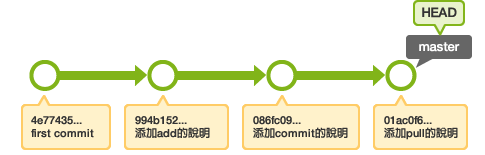
使用 rebase -i 命令選擇要修改的提交
$ git rebase -i HEAD~~
預設文字編輯器會開啟從 HEAD 到 HEAD~~ 的提交,如下圖顯示:
pick 9a54fd4 添加commit的說明
pick 0d4a808 添加pull的說明

# Rebase 326fc9f..0d4a808 onto d286baa
#
# Commands:
#  p, pick = use commit
#  r, reword = use commit, but edit the commit message
#  e, edit = use commit, but stop for amending
#  s, squash = use commit, but meld into previous commit
#  f, fixup = like "squash", but discard this commit's log message
#  x, exec = run command (the rest of the line) using shell
#
# If you remove a line here THAT COMMIT WILL BE LOST.
# However, if you remove everything, the rebase will be aborted.
#
將第一行的 "pick" 的文字改成 "edit" ,儲存並退出。接著,將會顯示以下內容,會 checkout 到欲修改的提交。
Stopped at d286baa... 添加commit的說明
You can amend the commit now, with

        git commit --amend

Once you are satisfied with your changes, run

        git rebase --continue
打開 sample.txt ,修改成為以下內容。
連猴子都懂的Git命令
add 修改加入索引
commit 記錄索引的狀態
pull 取得遠端數據庫的內容
使用commit --amend 來修改。
$ git add sample.txt
$ git commit --amend
您現在需要執行 "git rebase --continue"以完成rebase的操作。
$ git rebase --continue
Note
這時,在其他的提交情況有可能會發生衝突。請修改衝突的部分後再執行 add 和 rebase --continue ,這時不需要再提交。如果在中途要停止 rebase 的操作請使用"rebase --abort",這樣就可以抹去並停止在 rebase 的操作。
按照以上的步驟,這樣就完成了提交的修改。
如果欲將多個提交內容修改成
edit 的話,也會 checkout 到要修改的提交,請實行一樣的修改。
Note
實際上,在 rebase 以前的提交會以 ORIG_HEAD 之名存留。如果 rebase 之後無法復原到原先的狀態,可以用 git reset --hard ORIG_HEAD 復原到 rebase 之前的狀態。